
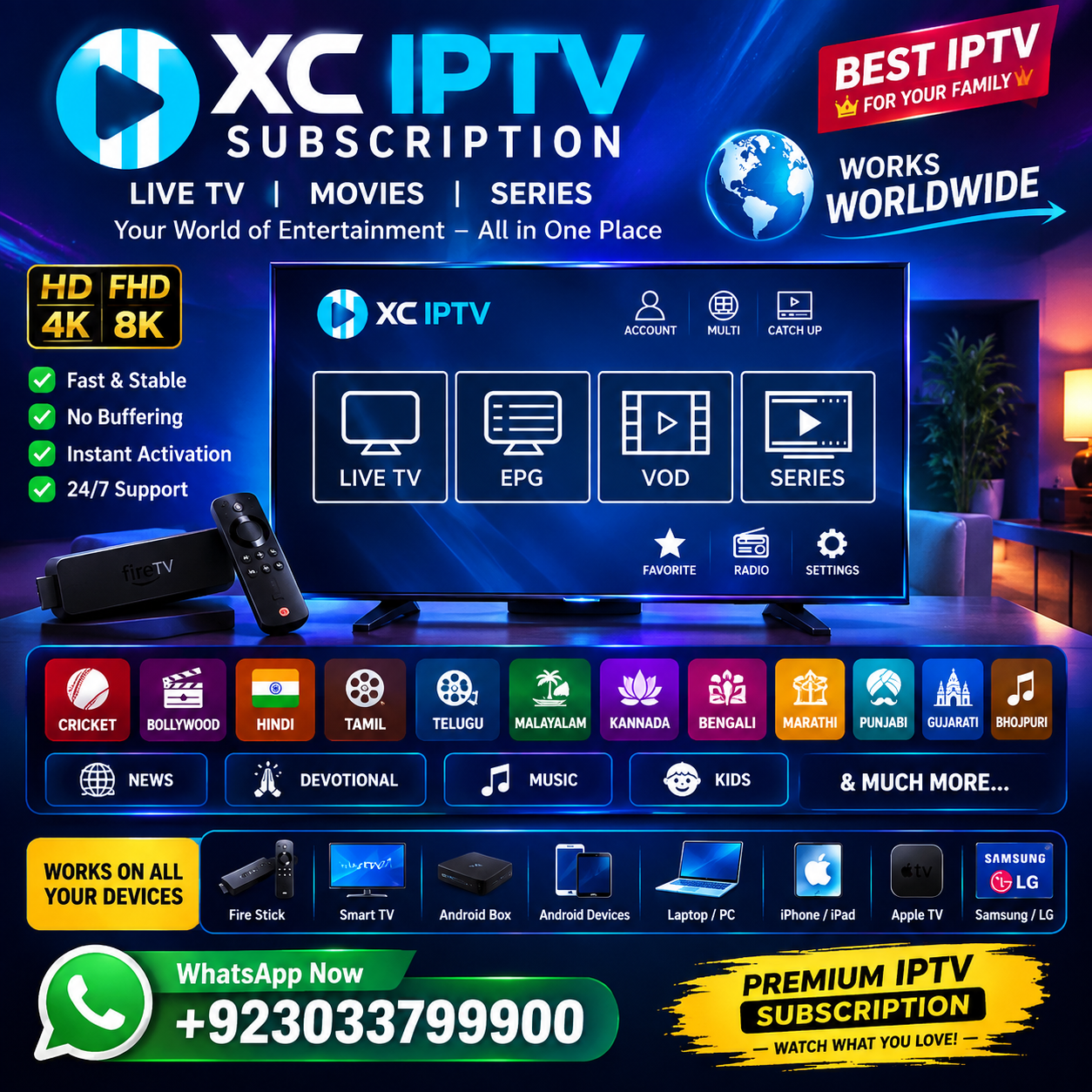
XC IPTV Player & Subscription – Xtream Codes Setup Guide
About XC IPTV Player & Subscription – Xtream Codes Setup Guide
XC IPTV Subscription – Full Setup Guide for FireStick, Android & Smart TV
Looking for a simple way to set up your XC IPTV Subscription? This complete guide explains how to configure IPTV using Xtream Codes (XC) details on compatible devices, including Amazon Fire TV Stick, Android TV, Android boxes, Smart TVs, smartphones, tablets and more.
Whether you are new to IPTV or already use an IPTV player, this guide walks you through the setup process step by step.
What Is an XC IPTV Subscription?
An XC IPTV Subscription generally refers to IPTV access using Xtream Codes API login details. Instead of manually entering a long M3U playlist URL, compatible IPTV players can use three simple details:
- Server / Portal URL
- Username
- Password
Once these details are entered into a compatible IPTV player, the application can organise available live TV, movies and series into separate categories.
«Important: The IPTV player/app is normally separate from the IPTV subscription. Make sure you use a legitimate service and content you are authorised to access.»
XC IPTV Subscription Setup on Amazon FireStick
Amazon FireStick is one of the most commonly used devices for IPTV players.
Step 1 – Open FireStick Settings
From the FireStick home screen:
1. Go to Settings
2. Select My Fire TV
3. Open Developer Options
4. Select Install Unknown Apps
5. Enable the option for the downloader application you intend to use
The exact menu wording can vary depending on your Fire OS version.
Step 2 – Install Downloader
If Downloader is already installed, open it.
If you need to install it:
1. Go to the FireStick search option.
2. Search for Downloader.
3. Select the official Downloader application.
4. Install and open it.
Step 3 – Use the Downloader Code
When Downloader asks for a URL or search term, enter:
4472530
This is the Downloader Code provided for this setup guide.
Always verify the destination before installing any application, because Downloader codes can point to third-party websites or APK files.
Step 4 – Install Your IPTV Player
After opening the destination associated with the code, follow the on-screen instructions for the compatible IPTV player.
The installation process may vary depending on the application and your Fire TV version.
How to Add XC / Xtream Codes
After installing and opening a compatible IPTV player, look for an option such as:
Login with Xtream Codes API
You may be asked for:
Server URL
Enter the server address provided by your IPTV provider.
Username
Enter the username supplied with your subscription.
Password
Enter the password supplied with your subscription.
Then select:
Add User / Login / Connect
The exact button name depends on the IPTV application.
XC IPTV Setup on Android TV
You can also use Xtream Codes on many Android TV devices.
Setup Steps
1. Open Google Play Store.
2. Search for a compatible IPTV player.
3. Install the application.
4. Open the IPTV player.
5. Select Xtream Codes API or a similar login option.
6. Enter your server URL.
7. Enter your username.
8. Enter your password.
9. Save the profile.
10. Allow the playlist to load.
After successful login, available categories may include Live TV, Movies and Series.
XC IPTV Setup on Android Box
The process on an Android TV box is similar:
Install IPTV Player → Select Xtream Codes → Enter Login Details → Connect → Load Playlist
Make sure your Android box has a stable internet connection and sufficient available storage.
XC IPTV on Smart TV
Many modern Smart TVs support IPTV applications through their respective app stores.
Depending on your television brand, you may be able to install a compatible IPTV player directly from the TV's application store.
Common Smart TV platforms include:
- Samsung Smart TV
- LG Smart TV
- Android TV
- Google TV
- Sony Smart TV
- Philips Smart TV
- Hisense Smart TV
- TCL Smart TV
- Panasonic Smart TV
App availability varies by model, operating system and region.
XC IPTV on Mobile Devices
Xtream Codes-compatible IPTV applications are also available for some Android smartphones and tablets.
The general process is:
1. Install a compatible IPTV player.
2. Open the application.
3. Choose Xtream Codes API.
4. Enter your server URL.
5. Enter username.
6. Enter password.
7. Save and connect.
For iPhone and iPad, application availability and supported login methods depend on the current App Store offering and the individual IPTV player.
What Can You Access With XC IPTV?
The content available through an IPTV subscription depends entirely on the provider and the rights they have to distribute that content.
A properly configured IPTV service may organise authorised content into categories such as:
Live TV
- Entertainment
- News
- Sports
- Movies
- Kids
- Music
- Documentary
- International
- Regional channels
Movies
Movie categories can include different languages, genres and regions depending on the provider's catalogue.
TV Series
Series can be organised by:
- Country
- Language
- Genre
- Latest releases
- Popular series
- Seasons
- Episodes
XC IPTV M3U vs Xtream Codes
Two common IPTV playlist methods are M3U and Xtream Codes API.
M3U
An M3U playlist normally uses a playlist URL containing IPTV stream information.
Xtream Codes API
Xtream Codes normally requires:
- Server URL
- Username
- Password
Many IPTV players use the Xtream Codes method because the interface can automatically organise available Live TV, Movies and Series.
XC IPTV Troubleshooting Guide
IPTV Login Not Working
Check that:
- Username is entered correctly.
- Password is entered correctly.
- Server URL is correct.
- There are no extra spaces.
- Your subscription is active.
- Your device has internet access.
Channels Are Buffering
Try:
1. Restarting your router.
2. Restarting your FireStick or Android device.
3. Closing unnecessary applications.
4. Using a wired connection where available.
5. Checking whether the problem affects one channel or all channels.
If only one stream is affected, the issue may be related to that particular stream rather than your device.
Movies or Series Are Not Loading
Try refreshing the playlist or restarting the IPTV application.
If the problem continues, contact your IPTV provider and provide:
- Device model
- Application name
- Movie/series name
- Season and episode
- Exact error message
IPTV Player Keeps Freezing
Clear the application's cache if your device provides that option, restart the application and check your internet connection.
Keeping your device and IPTV application updated can also help with compatibility issues.
XC IPTV Subscription Worldwide
An XC IPTV setup can be used on compatible devices in many regions around the world, subject to the IPTV provider's availability and applicable laws.
This setup guide is relevant to users searching for:
- XC IPTV Subscription
- Xtream Codes IPTV
- XC IPTV setup
- XC IPTV FireStick
- XC IPTV Android
- Xtream Codes API setup
- IPTV Xtream Codes login
- IPTV subscription worldwide
- IPTV player setup
- IPTV FireStick setup
- IPTV Android TV setup
- IPTV Smart TV setup
- IPTV M3U setup
- XC IPTV Player
Frequently Asked Questions
What is XC IPTV?
XC IPTV commonly refers to IPTV services or players that use the Xtream Codes API login method.
What details do I need for Xtream Codes?
Normally, you need a server URL, username and password supplied by your IPTV provider.
What is the Downloader Code?
The Downloader Code included in this guide is:
4472530
Verify the destination shown by Downloader before installing third-party software.
Can I use XC IPTV on FireStick?
Yes, compatible IPTV players can be installed on FireStick and may support Xtream Codes API login.
Can I use XC IPTV on Android TV?
Yes. Many compatible IPTV players support Xtream Codes API on Android TV and Google TV devices.
Do I need a separate IPTV player?
Usually, yes. The IPTV subscription provides access credentials, while an IPTV player is used to display the authorised content.
Is XC IPTV the same as M3U IPTV?
Not exactly. Both can be used to provide IPTV playlist information, but they use different login/setup methods.
Final Setup Checklist
Before contacting support, check the following:
☑ Internet connection is working
☑ IPTV player is installed
☑ Correct server URL entered
☑ Correct username entered
☑ Correct password entered
☑ Subscription is active
☑ Device has enough storage
☑ IPTV player is updated
☑ FireStick/Android device has been restarted
XC IPTV Subscription, XC IPTV, Xtream Codes IPTV, Xtream Codes Subscription, XC IPTV Setup, IPTV Subscription Worldwide
XC IPTV FireStick, XC IPTV Android, XC IPTV Smart TV, Xtream Codes API, IPTV Xtream Codes Login, XC IPTV Player, IPTV M3U, IPTV FireStick Setup, IPTV Android TV Setup, IPTV Smart TV Setup, Xtream Codes IPTV Setup
How to setup XC IPTV on FireStick, how to use Xtream Codes IPTV, XC IPTV FireStick setup guide, how to add Xtream Codes to IPTV player, XC IPTV Android TV setup, Xtream Codes API login guide, IPTV subscription setup worldwide.
XC IPTV Subscription – Xtream Codes Setup Guide Worldwide
Learn how to set up XC IPTV using Xtream Codes on FireStick, Android TV and Smart TV. Complete IPTV setup guide with Downloader Code 4472530.
XC IPTV Subscription – Full Xtream Codes Setup Guide
XC IPTV Subscription Xtream Codes setup guide for FireStick and Android TV
Join the Sky glass iptv WhatsApp Community
Get instant alerts on new stock, flash discounts and price drops before anyone else. Ask questions, share setup tips and get help directly from our team — free to join, and you can leave any time.
You may also like
More in IPTV SUBSCRIPTION


B1G IPTV UK – B1G Player Subscription & Streaming Guide UK ?
B1G Player IPTV UK subscription with Live TV, VOD, Series, EPG and HD/FHD/4K streaming. Compatible with Firestick, Android TV and more.
Starting from
RS 25,000

Best IPTV Service 2026 UK – Live Football Stream & IPTV Subscription
SKY GLASS IPTV
Starting from
RS 35,000

Best IPTV Subscription Guide 2026 – Buy IPTV Subscription in the UK & Europe
Looking for the best IPTV subscription in the UK or Europe? Compare IPTV subscription options, free trials, 12-month plans, Apple TV support and Arabic channels.
Starting from
RS 25,000